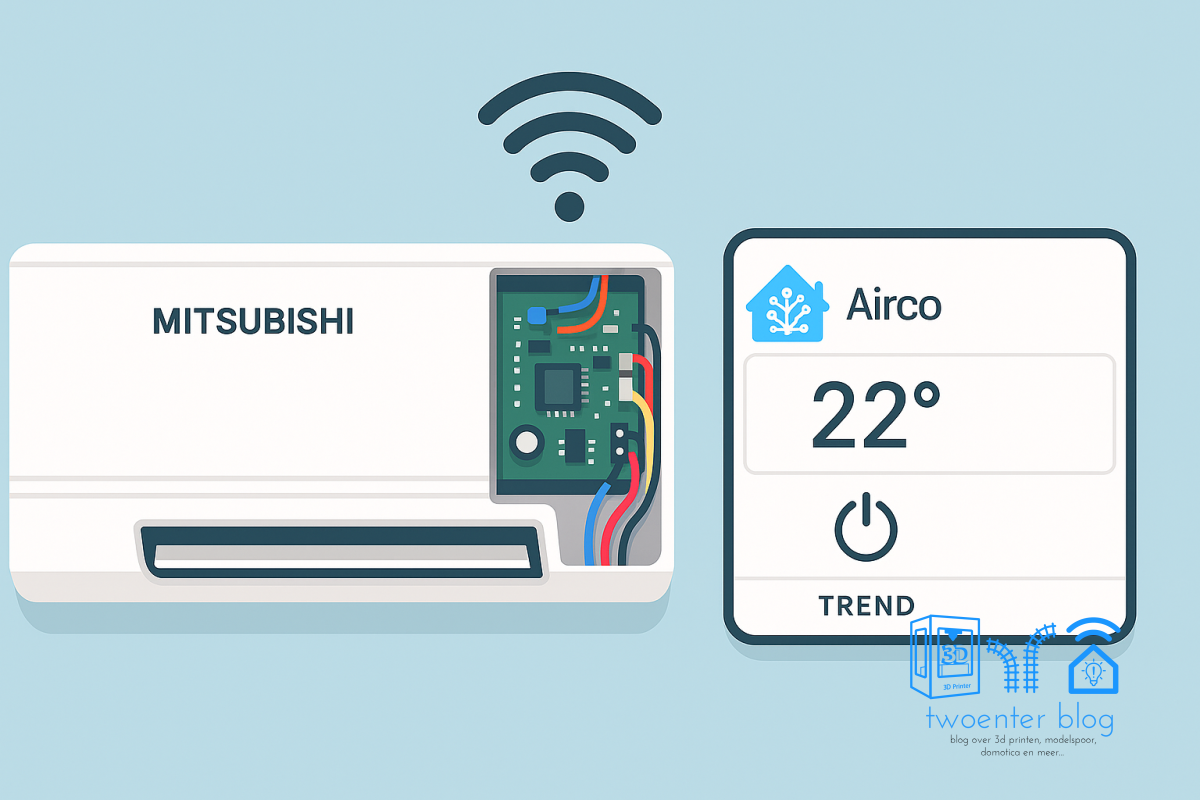
Last summer, I moved to a new house where air conditioners had already been installed. They are Mitsubishi Heavy Industries units, controlled via an infrared remote. Naturally, I wanted to control these air conditioners using Home Assistant over WiFi. During my search, I came across the MHI-AC-Ctrl project. Nodo-Shop turned out to sell complete kits, and there is also an ESPHome version of the MHI-AC-Ctrl project. Great! I ordered a kit for each air conditioner and got to work.
Step-by-step guide for adding your air conditioner to Home Assistant
Time needed: 1 hour
To enable WiFi control of your Mitsubishi air conditioner using Home Assistant, follow the steps below. A more detailed explanation is provided after the step-by-step guide.
- Check compatibility of the MHI-AC-CTRL project with your air conditioner.
Check the list of supported devices for MHI-AC-CTRL and find the model number of your air conditioner. You’ll find the model number inside the front flap. In my case, it’s a SRK50ZS-W.

- Solder the components to the circuit board
Order the ESPAC Wifi interface MHI-AC-Ctrl via Nodo-Shop. Don’t forget to order a Wemos D1 mini if you don’t already have one.

- Disassemble the air conditioner housing
Unclip the air conditioner housing and locate the circuit board.

- Plug the MHI-AC-CTRL into the air conditioner
Use the included connector to connect the MHI-AC-CTRL to the Mitsubishi air conditioner.

- Close the air conditioner housing and test
Reassemble the housing and test the unit.

Shopping List

MHI-AC-Ctrl

 Bol
Bol  Aliexpress
 Check compatibility of the MHI-AC-CTRL with your air conditioner

Check the list of supported devices for MHI-AC-CTRL and locate your air conditioner’s model number. Most Mitsubishi Heavy Industries split-type air conditioners are supported. You can find the model number inside the flap. In my case, it’s an SRK50ZS-W. These units have a CNS connector header that allows connection of the official WiFi module. We take advantage of this to neatly connect our MHI-AC-CTRL.
Solder the components onto the PCB
Order the ESPAC WiFi interface MHI-AC-Ctrl from Nodo-Shop. Don’t forget to add a Wemos D1 mini to your cart if you don’t already have one. We will flash the ESPHome version of the MHI-AC-CTRL firmware onto the Wemos.
The kit includes 2 components, a cable, and a PCB. The two components need to be soldered onto the board. Pay close attention to polarity—there are clearly marked outlines on the PCB that match the correct orientation of the components. The headers supplied with the Wemos also need to be soldered onto the board. Be careful to solder everything on the correct side of the PCB.

You can now prepare the Wemos with headers. Once that’s done, you can start flashing. Connect the USB cable to the Wemos (without connecting it to the MHI-AC-CTRL board yet).


Flashing the ESPHome version of MHI-AC-CTRL
In ESPHome Builder, create a new device of type d1_mini. Paste the code below into the configuration screen, making sure to replace the placeholder values with your own secrets and encryption keys. The original example file can be found here, and corresponds to the code shown below. For convenience, you only need to change the value <<< AIRCO NAME >>> in two places.

esphome:
  name: "<<< AIRCO NAAM >>>"
  friendly_name: "<<< AIRCO NAAM >>>"
  min_version: 2024.6.0
  platformio_options:
    # Run CPU at 160Mhz to fix mhi_ac_ctrl_core.loop error: -2
    board_build.f_cpu: 160000000L

esp8266:
  board: d1_mini

logger:
  level: INFO
  baud_rate: 0

ota:
  - platform: esphome
    password: !secret ota_password

wifi:
  ssid: !secret wifi_ssid
  password: !secret wifi_password
  # use_address: 192.168.2.51

  # Enable fallback hotspot (captive portal) in case wifi connection fails
  ap:
    ssid: <<< AIRCO NAAM >>>

captive_portal:

web_server:


external_components:
  - source: github://ginkage/MHI-AC-Ctrl-ESPHome@master
    components: [MhiAcCtrl]

api:
  encryption:
    key: <<< Secret >>>

  reboot_timeout: 0s
  services:
    - service: set_vertical_vanes
      variables:
        position_value: int # 1-4: static positions, 5: swing, 0: unknown
      then:
        - climate.mhi.set_vertical_vanes:
            position: !lambda "return position_value;"
    - service: set_horizontal_vanes
      variables:
        position_value: int # 1-7: static positions, 8: swing, 0: unknown
      then:
        - climate.mhi.set_horizontal_vanes:
            position: !lambda "return position_value;"
    - service: set_external_room_temperature
      variables:
        temperature_value: float # temperature to set in Celsius
      then:
        - climate.mhi.set_external_room_temperature:
            temperature: !lambda "return temperature_value;"

# Version 4.0

MhiAcCtrl:
  # Only 20 (legacy) or 33 (includes 3D auto and vertical vanes) possible.
  # If you encounter mhi_ac_ctrl_core.loop error: -2 errors, change the frame_size to 20
  frame_size: 33
  initial_vertical_vanes_position: 5
  initial_horizontal_vanes_position: 8
  # Update the following to change the default room temp timeout
  room_temp_timeout: 60

button:
  - platform: restart
    name: Restart
    entity_category: diagnostic

climate:
  - platform: MhiAcCtrl
    id: <<< AIRCO NAAM >>>
    name: "<<< AIRCO NAAM >>>"
    visual:
      temperature_step:
        target_temperature: 0.5
        current_temperature: 0.1

time:
  - platform: homeassistant
    id: homeassistant_time

binary_sensor:
  - platform: MhiAcCtrl
    defrost:
      name: "Defrost"
    vanes_3d_auto_enabled:
      name: "3D Auto"

sensor:
  - platform: uptime
    name: Uptime
  - platform: wifi_signal
    name: WiFi Signal
    update_interval: 60s
  - platform: MhiAcCtrl
    outdoor_temperature:
      name: "Outdoor temperature"
    return_air_temperature:
      name: "Return air temperature"
    outdoor_unit_fan_speed:
      name: "Outdoor unit fan speed"
    indoor_unit_fan_speed:
      name: "Indoor unit fan speed"
    compressor_frequency:
      name: "Compressor frequency"
    indoor_unit_total_run_time:
      name: "Indoor unit total run time"
    compressor_total_run_time:
      name: "Compressor total run time"
    current_power:
      name: "Current power"
    energy_used:
      name: "Energy used"
    indoor_unit_thi_r1:
      name: "Indoor (U-bend) HE temp 1"
    indoor_unit_thi_r2:
      name: "Indoor (capillary) HE temp 2"
    indoor_unit_thi_r3:
      name: "Indoor (suction header) HE temp 3"
    outdoor_unit_tho_r1:
      name: "Outdoor HE temp"
    outdoor_unit_expansion_valve:
      name: "Outdoor unit exp. valve"
    outdoor_unit_discharge_pipe:
      name: "Outdoor unit discharge pipe"
    outdoor_unit_discharge_pipe_super_heat:
      name: "Outdoor unit discharge pipe super heat"
    protection_state_number:
      name: "Compressor protection code"
    error_code:
      name: "Error code"
    vanes_pos:
      name: "Vanes"
    vanesLR_pos:
      name: "Vanes Left/Right"

text_sensor:
  - platform: version
    name: ESPHome Version
  - platform: wifi_info
    ip_address:
      name: IP
    ssid:
      name: SSID
    bssid:
      name: BSSID
  - platform: MhiAcCtrl
    protection_state:
      name: "Compressor protection status"

select:
  - platform: MhiAcCtrl
    vertical_vanes:
      name: Fan Control Up Down
    horizontal_vanes:
      name: Fan Control Left Right

switch:
  - platform: MhiAcCtrl
    vanes_3d_auto:
      name: "3D Auto"
Now flash the code to the connected Wemos D1 mini using the “Install” button in ESPHome Builder.
Disassemble the air conditioner housing
Before you start, make sure to turn off the power. Unclip the housing of the air conditioner. This involves loosening several screws on the front — some are hidden under the flap, which also needs to be unclipped, and between the lower flaps. On the back side at the top, you can press some clips to detach the cover. You will then be left with the following situation:


Be aware that water may leak while handling the housing. In my unit, there was still some water in the drainage tray under the lower flaps.
On the side, there’s a black cover that can easily be unscrewed. This gives access to the control board we’re looking for.

Plug the MHI-AC-CTRL into the air conditioner
Locate the CNS header on the motherboard and use the provided cable to connect your MHI-AC-CTRL to the air conditioner’s control board. The plug only fits one way. Isolate the Wemos D1 mini using the casing supplied by Nodo-Shop or, as I did, with a good piece of tape (at your own risk!). Tuck the Wemos inside the black housing of the control board and screw the cover back onto the air conditioner. Reattach all other covers and screw everything back in place. Turn the power back on and check whether the air conditioner works as usual with the remote control.
Add your Mitsubishi Heavy Industries air conditioner to Home Assistant
Home Assistant should now automatically detect the new ESPHome device and add the entities.


Save money on your energy bill
Below are two screenshots showing the difference between heating with the gas boiler and heating with the air conditioner. The first screenshot clearly shows high gas costs for heating the house (between 04:00–08:00), while the second shows that it can be done much more cheaply with an air conditioner (between 05:00–08:00). In this example, the savings are already around €1, but there were mornings where heating with gas cost €3.50, while electricity was cheap and heating with the air conditioner would only have cost €0.60.
With a dynamic energy contract, you can save significantly on your energy bill through smart and simple adjustments. Curious how to get this working within Home Assistant? Then read my article about a dynamic energy contract in Home Assistant. Ready for a cheaper energy contract? Take a look at gaslicht.com or go with Frank Energie and get €50 off.


It works!
It works! You can now control your Mitsubishi Heavy Industries air conditioner via WiFi using Home Assistant, while still being able to use the regular remote control. Did it work for you too or do you have a question? Leave a comment!
You can now also use your air conditioner with automated heating automations. Heat your space based on presence, room temperature, schedule… It’s all possible with the Advanced Heating Control blueprint or the Versatile Thermostat.


Voor de Nederlandse lezers: via nodo-shop kun je de boel ook voorgesoldeert bestellen. (dat vond ik wel prettig, want de laatste keer dat ik gesoldeert heb was op de middelbare school).
Mocht je niet helemaal weten wat te bestellen dan adviseren ze je daar (volgens mij) ook graag bij. Ik had een foutje gemaakt bij mijn bestelling, en dat hebben ze keurig opgemerkt, teruggekoppeld, en geadviseerd hoe het op te lossen.
Hoi, zou je mij een beetje willen helpen daar ik wat foutmeldingen krijg met de yaml?
Hoi Robert,
Wat zijn de foutmeldingen precies? Dan kijk ik mee!
Op zich valt het mee en lijkt het gelukt echter de / die gebruikt wordt gaat verdwijnen in de nabije toekomst. Die staat in de yaml bij vanes.
Is dat gewoon een tekst?
Oh ja ik zie denk ik wat je bedoeld. De entity vanes left/right bevat een /. Blijkbaar mag dat binnenkort niet meer. Zo te zien is dat inmiddels in het full example opgelost door de slash te vervangen voor een spatie. https://github.com/ginkage/MHI-AC-Ctrl-ESPHome/blob/master/examples%2Ffull.yaml
Ik zal mijn code eens updaten 😉
Groet Wouter
Yep, en de wifi ‘moet’ tegenwoordig iets bijgezet worden.
Verder kijk ik even wat ik nog tegenkom.
I’m also having a hard time, ESPHome Builder 2026.3.3.
When trying to install the yaml in ESPHome Builder, it reports preparation failed –
File “”, line 77, in join
RecursionError: maximum recursion depth exceeded
Hi Sunny,
Are you running ESPHome builder in a container? When I google your error it looks like the secrets.yaml is causing this. I think you can simply paste the secret values in your device yaml and so you are not using the secrets file.
Groet Wouter
Hi Wouter, I’m running ESPHome in Home Assistant Operating System. Would this make a difference?
You are right, values worked. I also had to generate an API key but finally it’s compiled & I could install onto the D1 mini.
Thanks for your help!